Mago Whiteboard: The Free AI Whiteboard for Any Screen and Any Meeting

Mago Whiteboard is a free, real-time online whiteboard you can open in any browser at board.mago.io: no install, no account, no sign-up. Start a board on your laptop, tablet or smartphone, share it into a Microsoft Teams, Zoom, Google Meet or Webex meeting, or send it to any touch screen or room display in seconds.
How many great ideas have ended as a blurry phone photo of a dry-erase board? Someone snaps a picture, the glare hides half the diagram, and the session never really picks up again. Mago Whiteboard was built to end that.
It brings together what teams actually need in a meeting room: a shared canvas everyone can draw on, a way to bring analog flipcharts and dry-erase boards into the digital world, new AI tools that draw, create images and answer questions, and a simple way to take the board with you when the meeting ends.
You can start using it today, for free, at board.mago.io.
Start a whiteboard on any device: laptop, tablet, smartphone or touch screen
Yes, you can start a Mago Whiteboard from your laptop, your tablet or your smartphone. If the device has a modern web browser, it can run the board.
- Laptops and desktops: open board.mago.io, tap + New Whiteboard, and you are drawing.
- Tablets and smartphones: the same board works by touch, so you can sketch with a finger or a stylus. Free Mago apps are also available for iOS, Android, macOS and Windows.
- Interactive displays and touch screens: any touch screen with a browser becomes a collaborative whiteboard. Open board.mago.io/displays and the screen is ready.
There is nothing to install on the room screen and nobody has to register: not the host, not the guests, not the room. The canvas gives you the familiar toolkit: select, pan, pen, highlighter, eraser, text, shapes and connectors, undo and redo, and zoom.
Share your whiteboard in Microsoft Teams, Zoom, Google Meet and Webex
Mago Whiteboard works alongside the meeting platform you already use. Because the board lives at a link, you can open it in a browser tab and bring everyone in, whether the call is on Microsoft Teams, Zoom, Google Meet or Webex.
Click Share on your board and you get several ways to invite people:
- Copy invite: paste the link into the Teams, Zoom, Google Meet or Webex chat, and participants open the board on their own devices.
- Send by email: type an address and the invite goes straight to their inbox.
- Scan to join: attendees in the room point their phone camera at the QR code.
- Enter the code: anyone can type the six-character board code at board.mago.io/join.
You stay in control. Anyone with the link can ask to join, and you decide who comes in. Two switches let you choose whether everyone can draw and whether chat is on.
Once people are in, Present makes everyone follow your view, and Start call opens a built-in video call for up to four people right inside the board, handy when you don't need a full meeting platform.
Send a whiteboard to any display with board.mago.io/displays
Turn any TV, interactive flat panel or room screen into a whiteboard. Open board.mago.io/displays in the screen's browser and you see two choices:
- Send a whiteboard to this screen. The display shows a six-character code that refreshes every minute. On your phone or laptop, open your board, tap Share > Send to display, and type the code. The board appears on the big screen live, and everyone in the room can draw on it.
- Start from scratch. Tap + New Whiteboard to open a blank board right on the display, or Join a board to enter the code of a board that is already running.
This is the fastest way to get a whiteboard onto a meeting-room screen without a dedicated whiteboard appliance, a special login or an IT ticket. Start the idea on your phone in the hallway, then push it to the room display when you walk in.
New AI whiteboard features: Draw, Image and Ask
Tap the AI (sparkle) button on the toolbar and a single panel opens with three tabs. Each one puts something useful on the canvas without leaving the board.
AI Draw: say it, and the board draws it
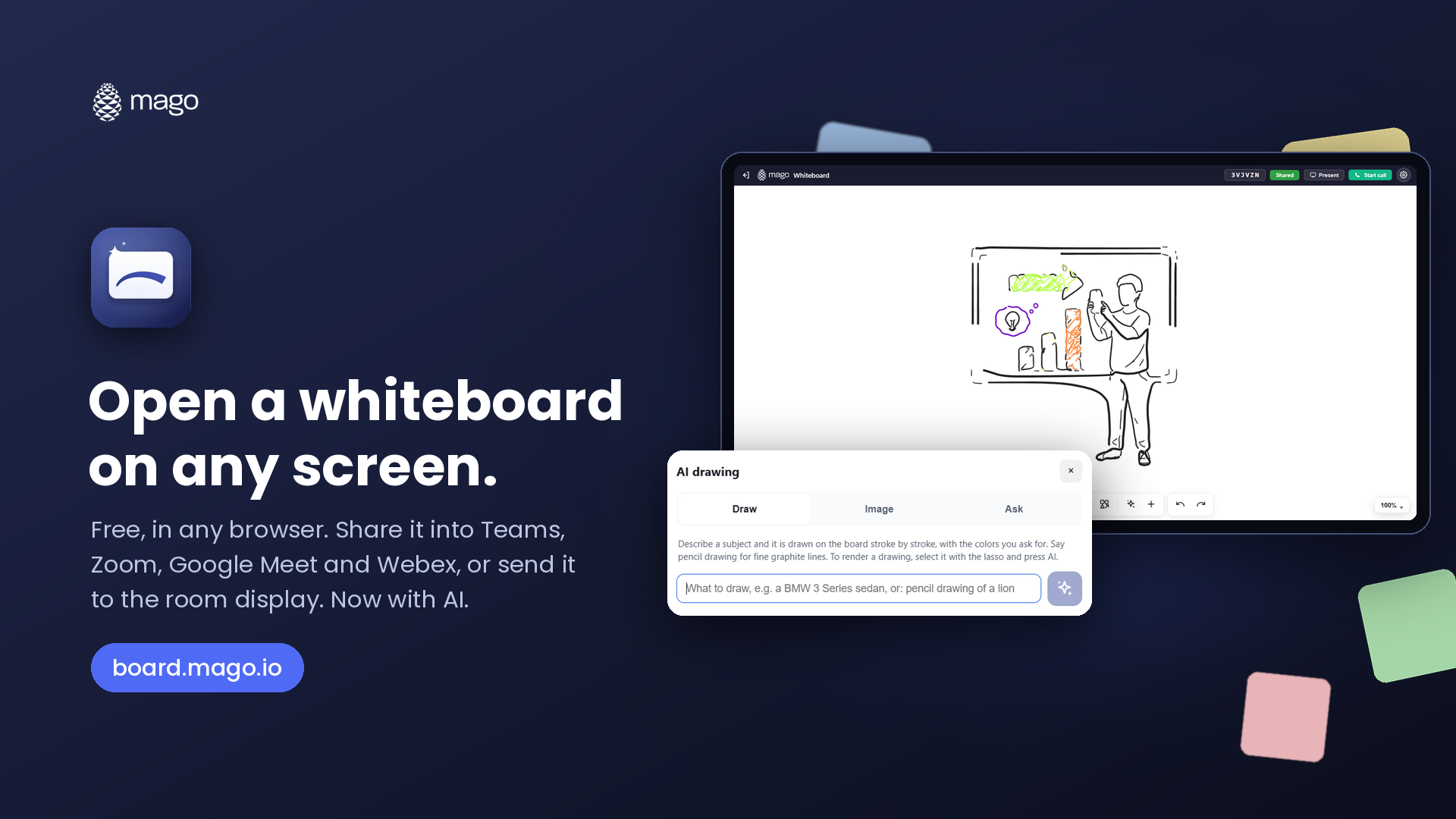
Describe a subject, for example "a BMW 3 Series sedan" or "pencil drawing of a lion", and Mago Whiteboard draws it on the board stroke by stroke, in the colors you ask for. These are real pen strokes, not a picture pasted on top. You can erase a line, change its color, pull the drawing apart and keep going by hand. Ask for a pencil drawing and it arrives in fine graphite lines. To render a sketch into something more finished, select it with the lasso and press AI.
AI Image: create or edit a picture on the canvas
Describe the picture you want and say the style (photo, watercolor, flat illustration) and it lands on the board as an image. You can also point at any photo already on the board and tell it what to change: a blue sky instead of a gray one, the crowd behind the subject removed, or the whole scene turned into a pastel pencil drawing. The new version appears beside the original, so nothing you had is lost.
AI Ask: get answers without leaving the board
Ask about a company, a person, a place or a topic. The answer is searched on the web and shown to you first, short or in full, with its sources. It goes on the board only when you choose to add it, as text you can move, resize and edit like anything else.
How to try the AI: the free edition includes 5 AI images to use in your first 7 days. For ongoing use, the AI edition unlocks drawing, pictures, photo edits and answers (see editions below).
Magic photo tools
Alongside the AI tabs, Mago Whiteboard includes image tools that work right on the canvas:
- Remove background: keep the subject and drop everything behind it.
- Change background: put a flat color or another picture behind the subject.
- Photo to vector: turn a photographed sketch into editable strokes.
- Photo cleanup: remove glare, shadows, a skewed angle, even someone standing in front of the board.
Digitize your dry-erase whiteboard or flipchart
Plenty of great thinking still happens with a marker. Mago Whiteboard doesn't ask you to give that up. It brings the analog work onto the digital board so the idea can keep going.
Open + > Capture flipchart and pick one of two options:
- Import a photo. Shoot the flipchart or page of notes with your phone, or pick a photo from your files. It lands on the board without the paper: ruled lines, shadows and creases are gone, and what remains is the drawing itself.
- Live capture. Fix a camera over the dry-erase board, and the digital board fills in as you write, so remote attendees see the marker work in real time.
From there, use Photo to vector to turn the captured lines into real, editable strokes. Recolor them, move pieces around, erase a section and redraw it, or add sticky notes and AI drawings on top. The idea you started on the analog whiteboard simply continues on the digital one.
No more taking pictures of the dry-erase board at the end of the meeting and hoping someone can read them later.
Add sticky notes, tables, YouTube videos, 3D models, maps and media
The + button on the toolbar turns the whiteboard into a full collaboration canvas:
| Add | What you can do with it |
|---|---|
| Sticky notes | Drop notes in six colors for brainstorms, retros and affinity mapping |
| Tables | Lay out comparisons, timelines or simple plans right on the board |
| Capture flipchart | Import a photo or live-capture a dry-erase board |
| Online video | Search YouTube from the board and play the video where you place it |
| 3D models | Search online 3D models (Sketchfab) and rotate them on the canvas |
| Map | Add a map for site walks, territory planning or event logistics |
| Import media | Search web images, or bring in your own photos and files |
Imported pictures arrive with the image tools already attached, so you can remove a background or clean up a photo on the spot. You can also bring in a multi-page PDF, flip through the pages and annotate, and your notes stay on each page. And everyone can react, vote and comment, so quieter participants have a voice too.
Take the board with you: save, resume and send it later
A whiteboard session shouldn't vanish when the meeting ends. When you close a board on a shared screen, Mago Whiteboard asks what you want to do with it:
- Take the board with you. A QR code appears. Scan it with your phone to save the board to the free Mago app, or sign in at magolink.com and type the short code shown. The QR code works once, for 15 minutes; the typed code lasts 5 minutes.
- Email a copy of this board. Enter an address and a PDF copy of the board goes straight to that inbox, perfect for meeting notes and follow-ups.
- Close and delete. Clear the board from the room screen when you're done.
Once the board is saved in the Mago app, you can keep working on it from your phone or tablet. Later, send it to another display (a different room, a different day) and pick up exactly where you left off.
This matters for privacy, too. Boards run on EU servers and live for the session, so nothing lingers on a shared room screen after you walk out.
Mago Whiteboard editions: free to start, AI when you want it
The whiteboard itself is free. Add the AI for yourself or for a whole room, or run it on your own server when the work can't leave the building.
| Edition | Price (USD, excl. VAT) | Best for |
|---|---|---|
| Free | $0, no license, no account to join | Anyone: real-time collaboration, sharing into Teams, Zoom, Google Meet and Webex, media, flipchart capture, calls for up to 4, plus 5 AI images in your first 7 days |
| AI | $19.99 / user / month | Individuals who want AI drawing, pictures, photo edits and answers: 400 AI actions a month (up to 50 a day), bought in-app |
| AI Room | $399 / room / year | Interactive displays, room PCs or wall tablets: licensed to the device, so nobody signs in and everyone who walks in shares the AI allowance |
| Server | Custom | Self-hosted, on-premise or private cloud, with your own AI keys, no daily AI cap and a custom domain |
AI Room and Server editions are available through authorized Mago resellers. Find one on the partner locator. Full details are on the Mago Whiteboard product page.
Frequently asked questions
Is Mago Whiteboard really free?
Yes. The Mago Whiteboard is free at board.mago.io with no license and no account needed to join a board. Paid editions add ongoing AI features, room licensing or a private server.
Do I need to install anything or create an account?
No. Mago Whiteboard runs in any web browser. Nobody has to register: not the host, the guests or the room screen. Free apps are also available for iOS, Android, macOS and Windows if you prefer one.
Can I start a whiteboard from my phone or tablet?
Yes. You can start a board on a laptop, tablet or smartphone, then share it or send it to a room display.
Does Mago Whiteboard work with Microsoft Teams, Zoom, Google Meet and Webex?
Yes. Copy the invite link from the Share panel and paste it into your Teams, Zoom, Google Meet or Webex meeting chat. Participants open the board on their own devices and draw together in real time.
How do I put a whiteboard on a meeting-room display or interactive screen?
Open board.mago.io/displays on the screen. Either start a new whiteboard there, join a board with its six-character code, or send your board from your phone using Share > Send to display and the code shown on screen.
What can the AI features do?
Draw sketches a subject as editable pen strokes. Image creates a picture or edits a photo on the board. Ask answers questions with web sources and lets you add the answer as text.
Can I digitize a dry-erase whiteboard or flipchart?
Yes. Use Capture flipchart to import a photo or live-capture a dry-erase board with a fixed camera, then convert the lines into editable vector strokes.
How do I save a whiteboard after the meeting?
When you close the board, scan the QR code to take it with you in the free Mago app, or email yourself a PDF copy. Saved boards can be edited on mobile and sent to another display later.
Where is my data stored?
The online service runs on EU servers, and a board lives for the session unless you take it with you. Organizations that need full control can choose the self-hosted Server edition.
Start your free whiteboard today
Mago Whiteboard gives every meeting a shared canvas: open it on any laptop, tablet, smartphone or touch screen, share it into Microsoft Teams, Zoom, Google Meet or Webex, send it to the room display with a short code, and take it with you when you're done. Capture what's on the dry-erase board, let the AI draw, create images and answer questions, and keep the idea moving.
Open board.mago.io and tap + New Whiteboard. It's free, and there's nothing to install. For a room screen, go to board.mago.io/displays.
Want Mago Whiteboard AI licensed for your meeting rooms, or a private self-hosted server? Book a 30-minute demo or find an authorized Mago reseller.