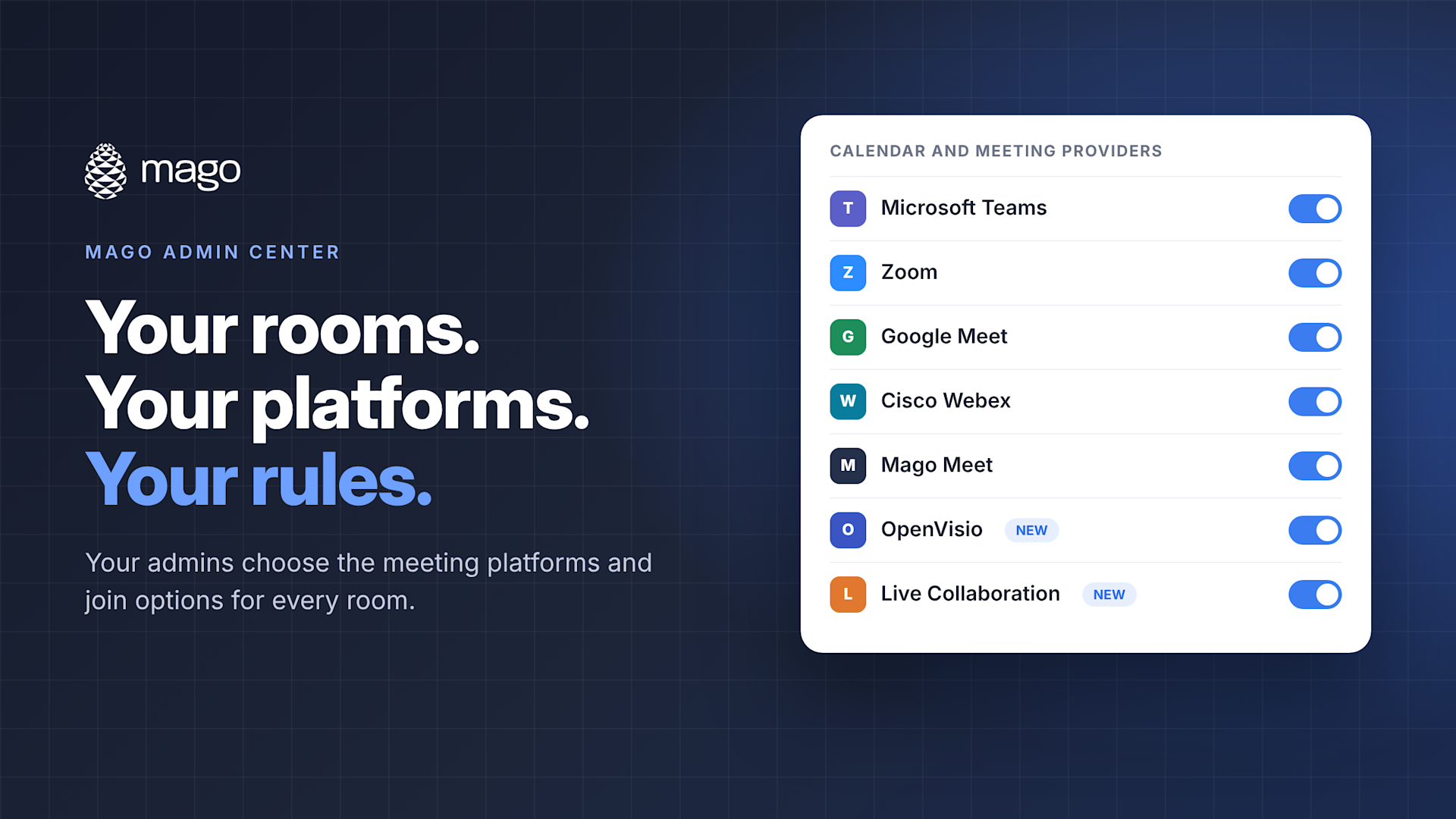
Calendar and Meeting Providers in Mago: Your Rooms, Your Platforms, Your Rules

Every organization meets differently. One company runs on Microsoft 365. Another lives in Zoom. A third has partners on Webex and a European team that relies on OpenVisio. Mago was built for that reality: one meeting room platform that lets each organization decide which meeting providers its rooms support, and exactly how people in the room can use them.
All of it is managed from one place, the Calendar and meeting providers section of each room in the Mago Admin Center.
Who controls it
The assigned admins for each organization make these choices. Nothing is forced on a room. Admins connect the accounts they want, turn on only the join options they want, and apply the same settings across many rooms with Policies.
For scheduling, Mago rooms connect to a Microsoft 365 or Google Workspace calendar, the two calendars Mago currently supports. At Mago, for example, our own rooms use Microsoft 365. Your organization might choose Google Workspace instead, and then decide which meeting platforms people can join from the room. That is the point.
Three ways people can meet
For most providers, admins can switch on any combination of these options:
- Join scheduled meetings from the calendar. Meetings booked on the room's Microsoft 365 or Google Workspace calendar appear on the display, and people tap to join.
- Join with a meeting ID and passcode. Guests type in the details of any meeting, booked on the room or not.
- Start an instant meeting. People in the room host a new meeting on the spot, where the provider supports it.
Some organizations keep it simple and only allow scheduled meetings. Others give guests the freedom to join by ID or start a meeting whenever they need one. Each room can be set up differently.
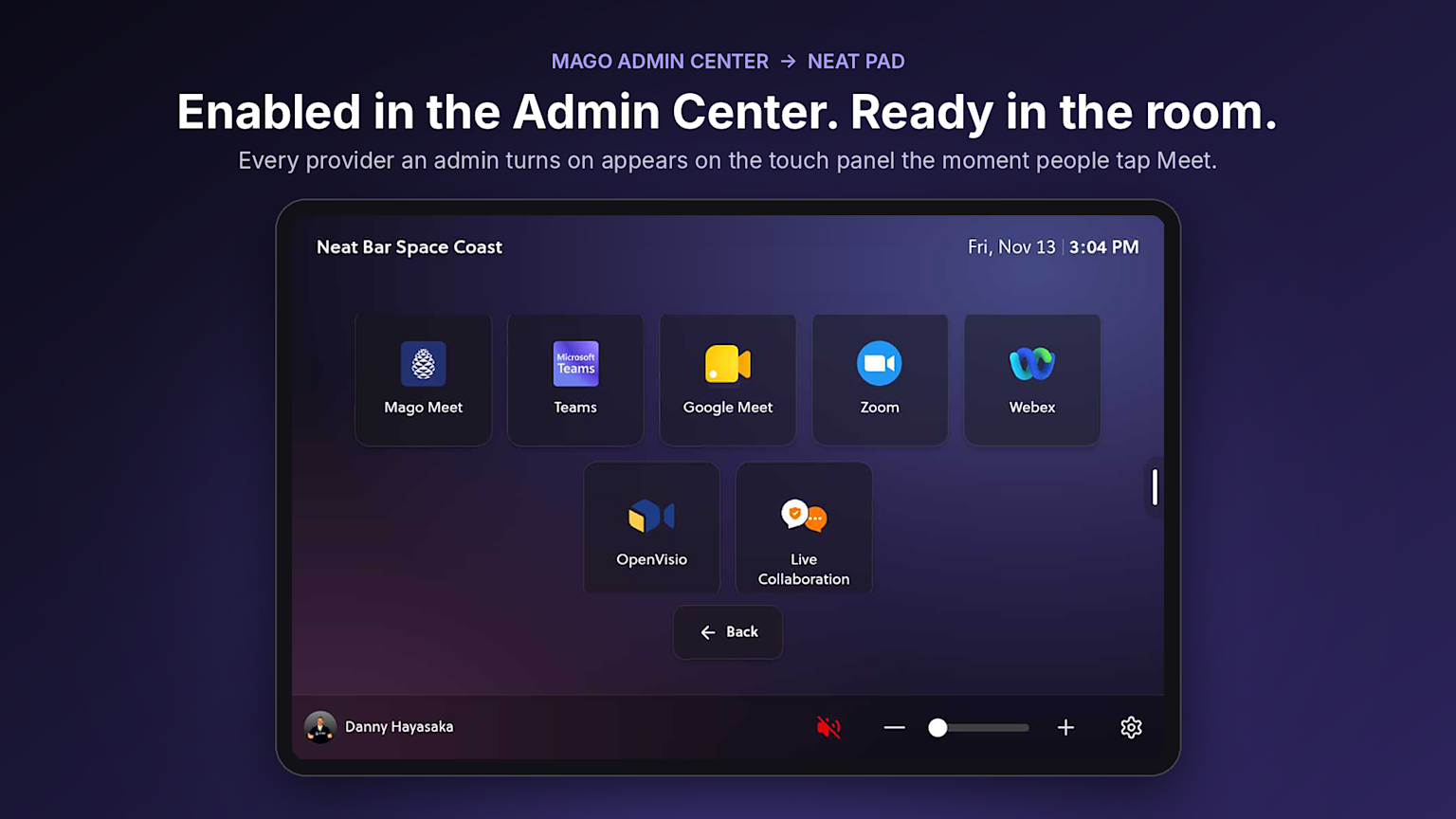
Provider by provider
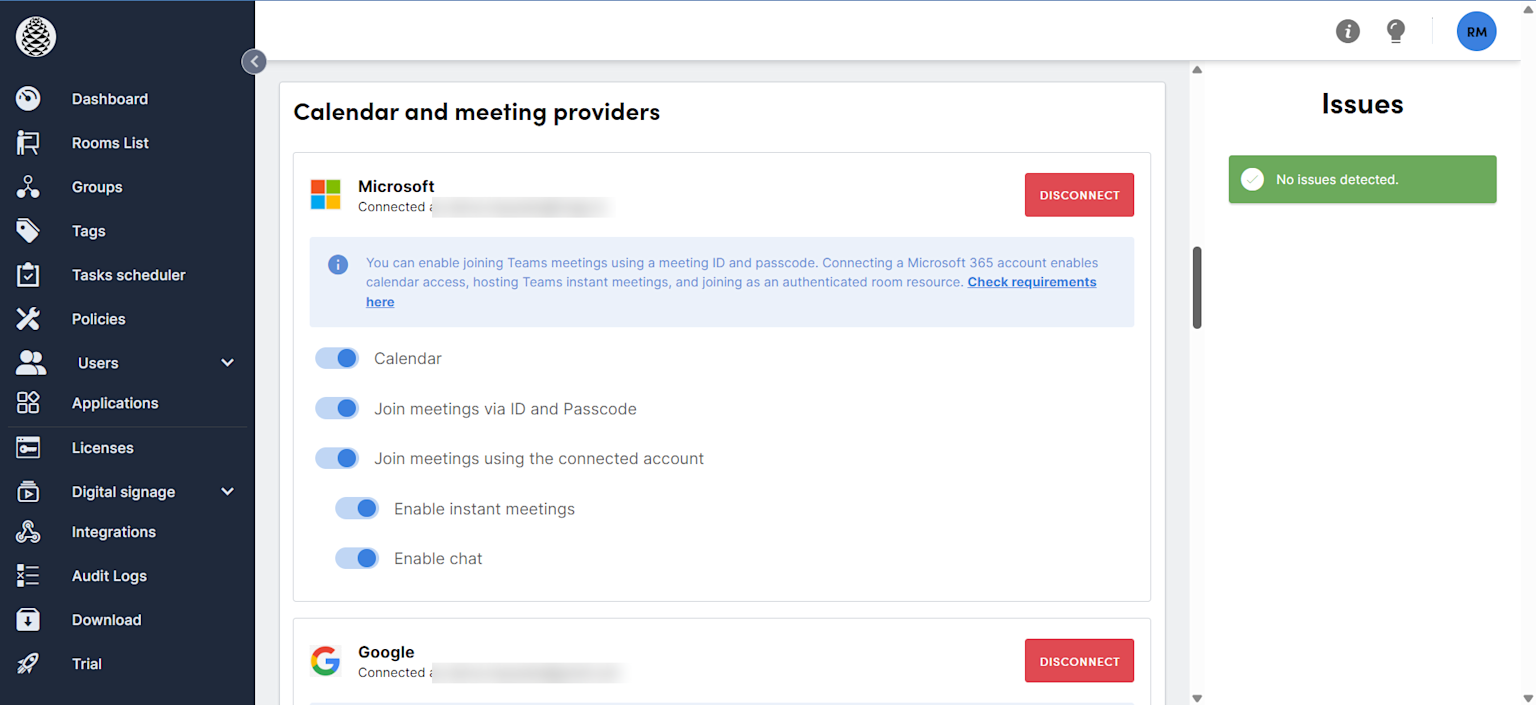
Microsoft Teams
Join with a meeting ID and passcode with no account needed. Connecting a Microsoft 365 account adds room calendar access, joining as an authenticated room resource, hosting Teams instant meetings, and chat.
Google Meet
Join with a meeting code. Connecting a Google Workspace account adds room calendar access and joining with the connected account. To host instant meetings, connect the account on the device itself, then turn on instant meetings.
Zoom
Join with a meeting ID and passcode, and host instant meetings when a Zoom account is connected. Since March 2, 2026, Zoom requires a connected and authorized Zoom user for every join method, so connect a Zoom user in your organization settings.
Cisco Webex
Join with a meeting ID and passcode. Connecting a Webex account also enables hosting instant meetings.
Mago Meet
Mago's own meeting service. Join with a meeting ID and passcode and host instant meetings, with no account connection needed.
OpenVisio
New in the Admin Center. Join OpenVisio meetings with a meeting ID and host instant meetings, with no account connection needed.
Live Collaboration
New in the Admin Center. Join Live Collaboration meetings with a meeting ID and PIN, with no account needed.
One way to share, whatever the platform
Choosing the meeting platform is only half the story. Once the meeting starts, people still need to put their content on screen, and that should not change from one provider to the next.
With Mago, it does not. Regardless of the platform, Magolink is how people share content during a meeting:
- Up to four people can share at the same time. The moderator decides whether the screen shows one, two, three or all four.
- Share from your own device. People share a browser tab, a window or their entire screen, with audio, through Magolink.
- Works on or off the corporate network, so guests and visitors can share as easily as employees.
- Included with the Mago subscription.
Teams today, Zoom after lunch, OpenVisio with the European team tomorrow: the sharing experience in the room stays the same.
Requirements at a glance
| What you want | What you need |
|---|---|
| Guests join a meeting | No user or room license for guest join |
| Room calendar on the display | A connected Microsoft 365 or Google Workspace account (the two supported calendars) |
| Host an instant meeting | A license for that system, plus a connected account where the provider requires one |
| Join Zoom meetings | A connected and authorized Zoom user |
A few more things to know:
- Mago joins meetings through official provider SDKs or web clients, and Mago does not bundle third-party desktop clients. If you prefer a provider's desktop client, your IT team installs it.
- Do not install the Zoom desktop client on Mago rooms, since it can conflict with the Zoom SDK.
Full details are in the Mago Knowledge Base under Supported video conferencing providers.
Flexibility is the point
Your people should not have to change how they meet because of the room they walk into. With Mago, admins choose the platforms, the join options, and the rules for every room, and they can change them any time from one console.
Mago is constantly evolving. The calendars, providers and options above are what is available today, and we keep adding more. Check back here and in the Mago Knowledge Base for the latest updates.