Network Requirements for an Optimal Mago Deployment: A Step-by-Step Guide

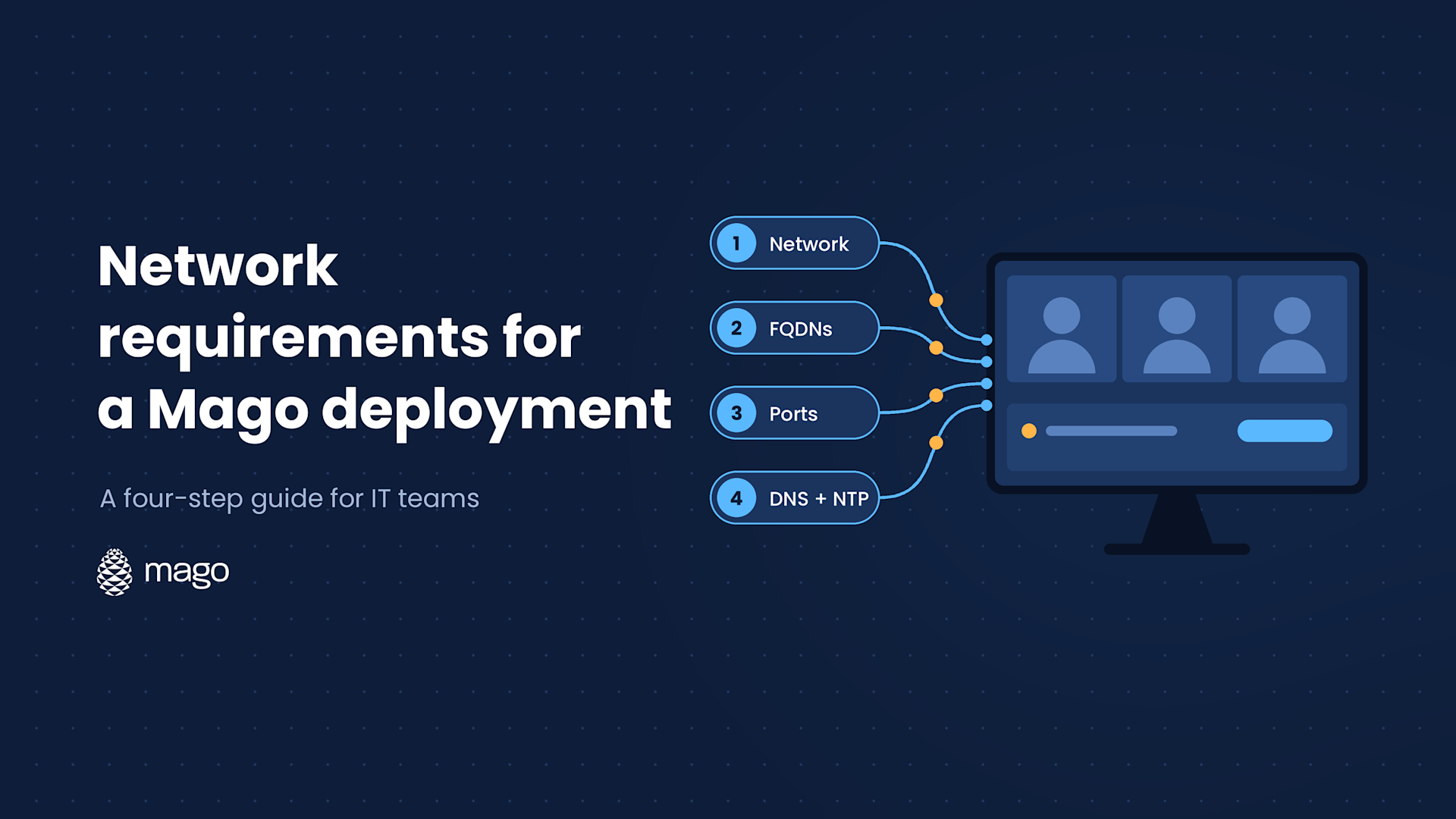
Before your first Mago device goes live, IT teams should check four areas: network and bandwidth planning, FQDN whitelisting, ports and services, and DNS and NTP configuration. Get these right up front and your rooms are ready for reliable, high-quality meetings from day one.
Rolling out Mago across your meeting rooms is straightforward, but like any platform that lives on your network, video quality, screen sharing reliability and admin functionality all depend on getting the network foundation right.
This guide walks through each step, with links to the matching Mago Knowledge Base articles for reference during your deployment.
Step 1: Plan your network foundation
Reference: Mago Knowledge Base: Network Requirements
Start with the physical and wireless network Mago will run on.
Wired network
Use Gigabit Ethernet or higher, ideally on a dedicated VLAN for Mago devices. Note that proxy connections are not supported for Mago traffic.
Wireless network
If Mago devices will connect over Wi-Fi, follow standard enterprise wireless best practices:
- Use access points and routers that can load-balance bandwidth across connected devices, ideally from a single manufacturer to reduce spectrum congestion.
- Position wireless equipment to minimize interference from physical obstructions and other electronics.
- Prioritize the 5 GHz band and enable band steering so 5 GHz takes precedence over 2.4 GHz on shared SSIDs.
- Keep wireless channel utilization under 50%.
- Keep access point and router firmware current.
- Target a signal strength of -60 dBm or stronger between Mago devices and the nearest access point.
- Implement QoS where possible to support real-time monitoring and troubleshooting.
Bandwidth planning
The minimum internet bandwidth for a Mago deployment is 2 Mbps. Third-party video conferencing platforms used through Mago (Zoom, Teams, Webex and others) typically need more, so check each vendor's own guidance.
For video conferencing, plan bandwidth per participant based on your target resolution:
| Resolution | Min framerate | Max framerate | Max bitrate (up/down) |
|---|---|---|---|
| 1080p | 30 | 30 | 4 Mbps |
| 720p | 30 | 30 | 2.5 Mbps |
| 540p | 30 | 30 | 2 Mbps |
| 360p | 30 | 30 | 1 Mbps |
| 240p | 15 | 15 | 650 Kbps |
| 180p | 7.5 | 15 | 250 to 350 Kbps |
Keep in mind that a 1080p stream needs that bandwidth available on both ends of the call, sending and receiving, for every participant in the meeting.
Step 2: Whitelist the required FQDNs
Reference: Mago Knowledge Base: FQDN Whitelisting
Mago's services, including licensing, device management, screen sharing, video conferencing and the mobile and web apps, each depend on specific domains being reachable through your firewall. Work through this checklist with your network team before deployment.
Licensing and activation
- license.remago.com
- api.remago.com
- activation.airserver.com
Mago Agent and Mago Admin Center
- admin.mago.io
- admin-hub.mago.io (HTTPS and WSS, port 443)
- admin-api.mago.io
- pod-pmc-production-signalr.azurewebsites.net
- api.mago.io
- pmc.mago.io
- rms.mago.io / prd-rms.mago.io
- vmc-api.valarea.com
- pmc.valarea.com
- prd-rms.valarea.com / rms.valarea.com
Mago Link Service (Mago Cast protocol)
- r.magolink.com (HTTPS and WSS, port 443)
- magolink.com
- magocast.com
- vc.mago.io (HTTPS and WSS, port 443)
Video conferencing
- vc-sdk.mago.io
- meet.mago.io (HTTPS and WSS, port 443)
If your rooms will also connect to third-party conferencing platforms through Mago, whitelist those platforms' own required domains:
- Microsoft Teams and Microsoft 365: Office 365 URLs and IP address ranges and, for Azure Communication Services, Microsoft's network requirements
- Zoom: Zoom network, firewall and proxy server settings
- Google Meet: Google Meet network requirements
- Cisco Webex: Webex network requirements
Mago Whiteboard, mobile apps (iOS and Android) and web apps
- app.mago.io
- chat1.mago.io / chat1.valarea.com
- globalchat1.azurewebsites.net
- meet1.mago.io / meet1.valarea.com
- arcrop.mago.io
- rgo.li
Third-party services
These cover OAuth sign-in, cloud storage and e-signature integrations.
- oauth-apple.valarea.com / oauth-apple.mago.io
- oauth-google.valarea.com / oauth-google.mago.io
- oauth-msft.valarea.com / oauth-msft.mago.io
- oauth-webex.valarea.com / oauth-webex.mago.io
- oauth-zoom.valarea.com / oauth-zoom.mago.io
- graph.microsoft.com
- inputtools.google.com
- googleapis.com
- autodraw.com
- dropbox.com
- eu.docusign.net
- account.docusign.com
Step 3: Open the required ports and services
Reference: Mago Knowledge Base: Ports and Services
An important note before you configure anything: required ports must be allowed at the VLAN infrastructure level, not just on individual endpoints. Your switches, firewalls and access points all need to permit this traffic within and across VLANs, not only on the Mago device itself.
Generic ports
| Port | Type | Direction | Service |
|---|---|---|---|
| 80 | TCP | Outbound | HTTP |
| 443 | TCP | Outbound | HTTPS |
| 53 | TCP/UDP | Outbound | DNS (internal or external) |
| 123 | UDP | Outbound | NTP (internal or external) |
Screen sharing protocols
Depending on which wireless screen sharing protocols you enable, review the port requirements for each one:
- Mago Link
- Miracast
- AirPlay
- Google Cast
The wireless screen sharing section of the Mago Knowledge Base has the protocol-specific port tables.
Local discovery service (optional)
If you enable local discovery for the Mago mobile apps, so phones and laptops can find nearby Mago devices automatically, open these ports as well:
| Port | Type | Direction | Service |
|---|---|---|---|
| 8034 | TCP | Both | Local Discovery Service |
| 8035 | UDP | Both | Local Discovery Service |
Step 4: Confirm DNS and NTP configuration
Reference: Mago Knowledge Base: DNS and NTP
Two often-overlooked but critical pieces:
- DNS: Mago Essential needs working DNS resolution to reach cloud-based services for software updates, authentication and core functionality. Domains like magolink.com and admin.mago.io all need to resolve correctly.
- NTP: Accurate system time is essential for certificate validation and secure communications. Make sure each Mago device can reach a reliable NTP source, either an external one like time.windows.com or an internal NTP server on your network.
Misconfigured DNS and drifting system clocks are two of the most common causes of "device won't activate" and "certificate error" support tickets, so validate both before rooms go live.
Pre-deployment checklist
Before you power on your first Mago device in production, confirm that:
- The wired network is Gigabit Ethernet or higher on a dedicated VLAN, or Wi-Fi is configured per the best practices above.
- At least 2 Mbps of bandwidth is available, with headroom for video conferencing at your target resolution.
- No proxy sits in the path of Mago traffic.
- All required Mago FQDNs are whitelisted, plus the domains of any third-party conferencing platforms you use.
- Ports 80, 443, 53 and 123 are open outbound at the VLAN and infrastructure level.
- Screen sharing protocol ports are configured for the protocols you are enabling.
- Local discovery ports 8034 and 8035 are open if you use proximity connection for the mobile apps.
- DNS resolution works from the device network.
- NTP time sync works from the device network.
Get it right once
Getting these four areas right up front, network and bandwidth, FQDN whitelisting, ports and services, and DNS and NTP, will save your team significant troubleshooting time during rollout.
For the most current details, always refer back to the source Knowledge Base articles:
Planning a rollout and want a second set of eyes on your network setup? Book a demo and our team will walk through it with you.