How to Show Legacy Software on a Video Wall

To show legacy software on a video wall, install a remote agent on the workstation that runs it, then place that workstation on the wall as a live tile. With the Mago Stage Remote Agent, you drag the workstation onto any display and drive it with remote keyboard, mouse and touch, even when the software only runs on that one machine.
Every organization has software that nobody dares to move: the CAD station, the ERP client, the control application on a machine that has run the same way for years. It cannot be exported to a web page and it will not run anywhere else. The question is how to put it in front of a whole room.
Why is legacy software hard to put on a big screen?
Because it lives on one machine. You can walk a laptop to the room and plug it in, but that ties up the machine and the person. You can screen-share it, but then the room can only watch. The Remote Agent solves both problems by keeping the software where it is and bringing its screen to the wall.
What is the Mago Stage Remote Agent?
It is a small program you install on a workstation. Once installed, the workstation joins your Mago Stage library securely, like any other piece of content. It is available for Windows 11 and macOS, with Android following.
How do you put a workstation on the wall?
- Install the Remote Agent on the workstation that runs the software.
- Activate it in the Mago Stage admin portal under Agents, using the six-digit code the agent shows.
- Find it in the library on the console, alongside your videos, PDFs and web pages.
- Drag it onto a display. The workstation is now live on the wall.
- Take control. Use remote KVM, with keyboard, mouse and touch emulation, from the console or right on the screen.
What can you do once it is on the wall?
- Show a CAD model or an ERP screen next to a video and a PDF in the same layout.
- Run a lesson with the lab PC beside it, as in the Town Hall and Smart Education use case.
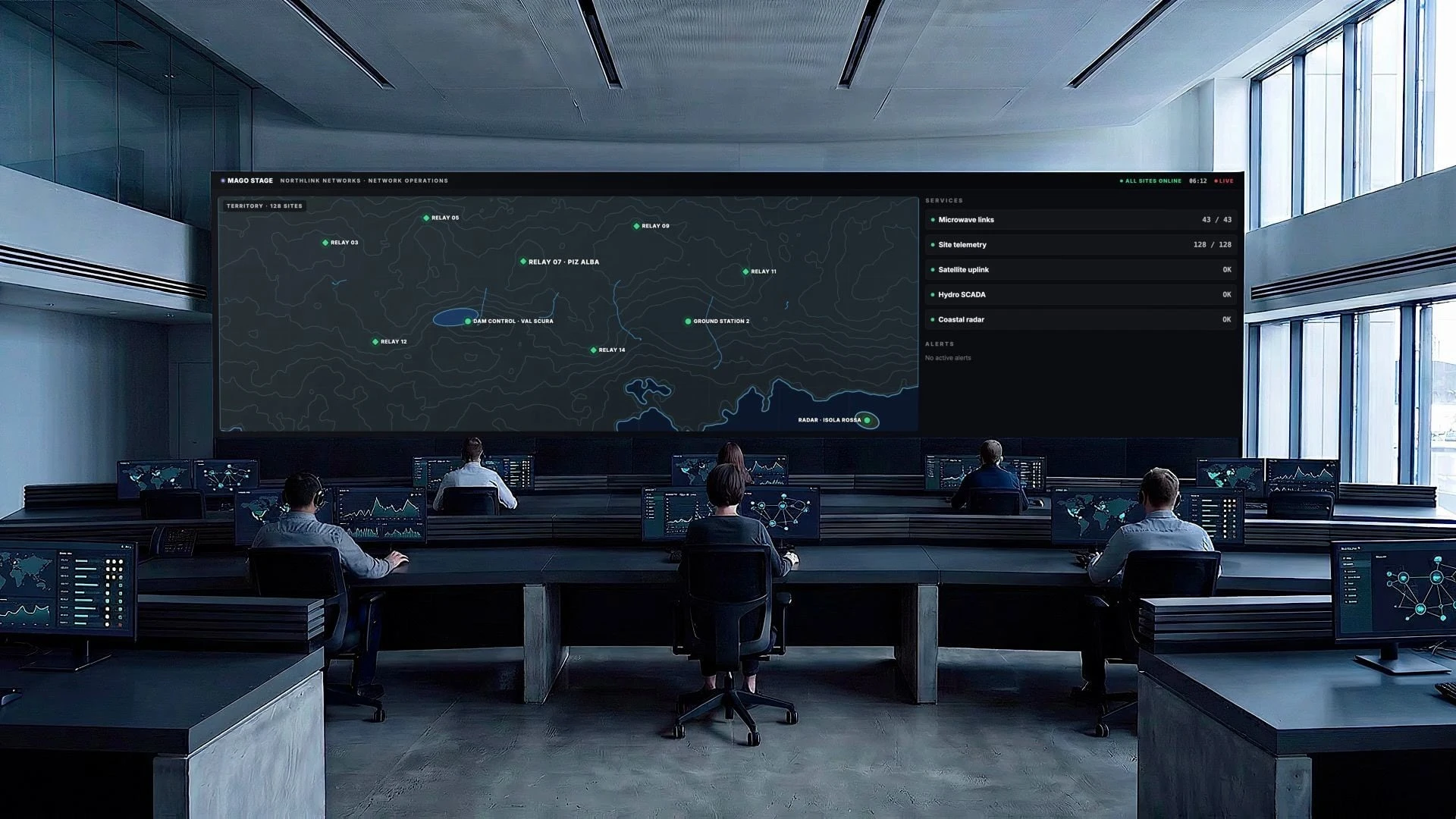
- Operate station controls next to the map and cameras in a control room.
- Restart a remote PC from the control room, as if you were on site.
How is it different from screen sharing or remote desktop?
| Approach | What the room sees | Can you control the machine? | Sits alongside other content? |
|---|---|---|---|
| Screen sharing | The screen | Usually not from the wall | Depends on the tool |
| Remote desktop on one device | Only on that device | Yes | No |
| Mago Stage Remote Agent | A live tile on any display | Yes, with keyboard, mouse and touch | Yes, in the same grid as video, PDF, 3D and web apps |
How much does the Remote Agent cost?
The product page lists Remote Agents at $99 per agent per year on the Basic edition, with a volume discount on Pro and Ultra.
Is it secure?
The integration between the agent and Mago Stage is secure, and agents are managed from the admin portal, where you can push updates and use user roles to control who can do what.
Frequently asked questions
Can I show software that has no web version?
Yes. The Remote Agent shows and controls the whole workstation, so any application running on it can be on the wall.
Does it work on a Mac?
Yes. The agent runs on macOS and Windows 11.
Can I touch the application on the wall?
Yes. Touch and mouse emulation let you interact directly on a touch display, or from the console.
Do I need to move the software?
No. It stays on its machine.
Have software that has to stay where it is? Book a demo and we will show it on the wall. You can also see how this fits a control room.