How to Control Multiple Displays From One Tablet

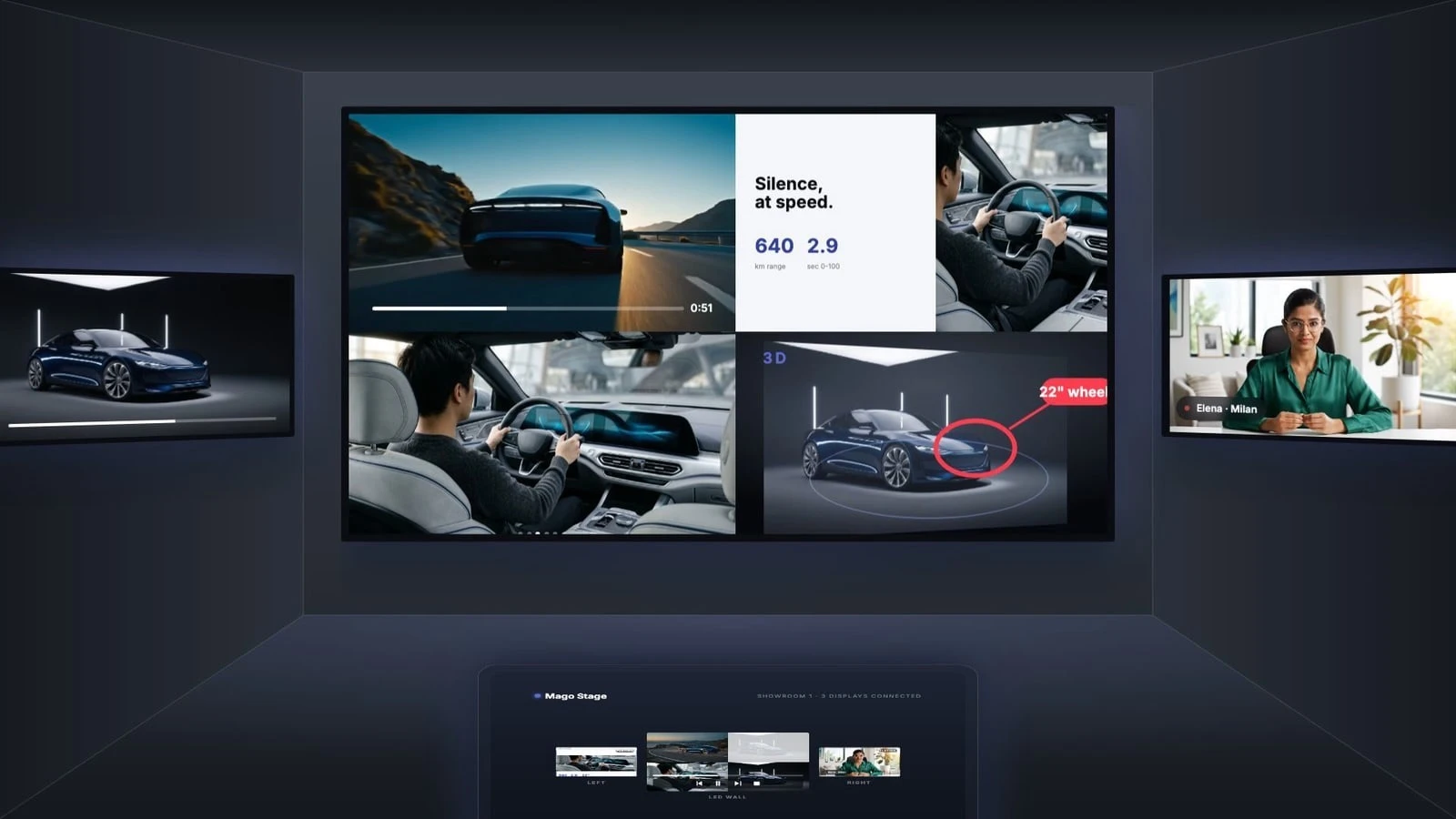
To control multiple displays from one tablet, install a receiver on each display's player or PC, connect the tablet by scanning a QR code or entering a short code, then drag content onto any screen. With Mago Stage, what you see on the tablet is what appears on each display, and every screen can mirror the others or run its own layout.
Once a room has more than one screen, someone has to run all of it. A tablet in the presenter's hand is a good answer, as long as the software behind it is built for the job.
What do you need to get started?
- A controller. A tablet is best. Mago Stage's console also runs on a Windows PC or Mac, and on a touch table or the touch screens themselves in showroom mode.
- A receiver on every display. The Mago Stage Receiver runs on a Windows 11 PC, a Mac, an Android OS player or smart display, or a Samsung VXT display.
- A network. Controller and receivers connect wirelessly. The Basic edition works with no internet at all, which suits trade shows where connectivity is a cost and a risk.
How do you connect the tablet to the displays?
- Open the Mago Stage receiver on each display. It shows a QR code and a short connection code.
- Open the console on your tablet and tap scan to connect. You can also pick the display from the list if it is on the same network, or type the code by hand.
- Repeat for each display. Every connected display appears on the console, ready for content.
- Drag a video, PDF, photo, 3D model, web page or camera feed onto a display. It is live.
- Use the live previews to check each screen, and play, pause, seek or stop any video from its thumbnail.
The layout grid adapts automatically to the resolution of each screen, so you do not set it up for 1080p or 4K ahead of time.
How do layouts work on each display?
Every display has its own canvas. Content snaps into a clean grid of 16:9 tiles, from one to many. For anything else, merge cells into custom areas, such as a tall portrait column for a live map beside your video. You can change the layout mid-presentation and every tile keeps running.
Can every screen show the same thing, or something different?
Both. You choose layout and playback separately.
| Setting | What it does | Use it when |
|---|---|---|
| Mirror | Same content on every display | Everyone in a large room needs the same view |
| Independent layouts | A different layout on each screen | Each wall has a different job |
| Synchronized playback | Videos run in step across displays | A video spans several screens |
| Independent playback | Each screen plays, pauses and seeks on its own | Screens tell separate stories |
How many displays can one tablet control?
It depends on the edition. Basic supports up to 3 displays connected to one Windows 11 PC. Pro adds a local server and supports up to 30 receivers on the same local network. Ultra uses limits that are agreed with you rather than capped. Our guide to choosing a Mago Stage edition compares them.
Do I need a touch screen on the wall?
No. Most LED walls are not touch displays, which is exactly why the tablet is the controller. If you do have a touch display, showroom mode lets visitors explore on their own.
Practical tips
- Use a tablet or a touch PC rather than a phone to manage a full room. A phone is still handy for joining a screen in one tap and sharing from it.
- Prepare your content in the library along the bottom of the console before the meeting so it is one drag away.
- Use the console's volume control to set audio on the receiver side, so you never have to walk to the wall.
Frequently asked questions
Can I use an iPad to control a video wall?
Yes. Mago Stage's console runs on iPad, Android tablets, Windows PCs and Macs.
Do I need a media player behind every display?
Each display needs a receiver. That can be a player or PC behind the display, or the display itself. On Samsung VXT displays running Tizen 6.5 or later, Mago Stage is a native app, so no external player is needed.
Can remote guests join?
Yes, through the built-in videocall, which puts them on the displays next to your content.
Not sure where to begin? Start with what Mago Stage is, or book a demo and we will set it up on your own displays.