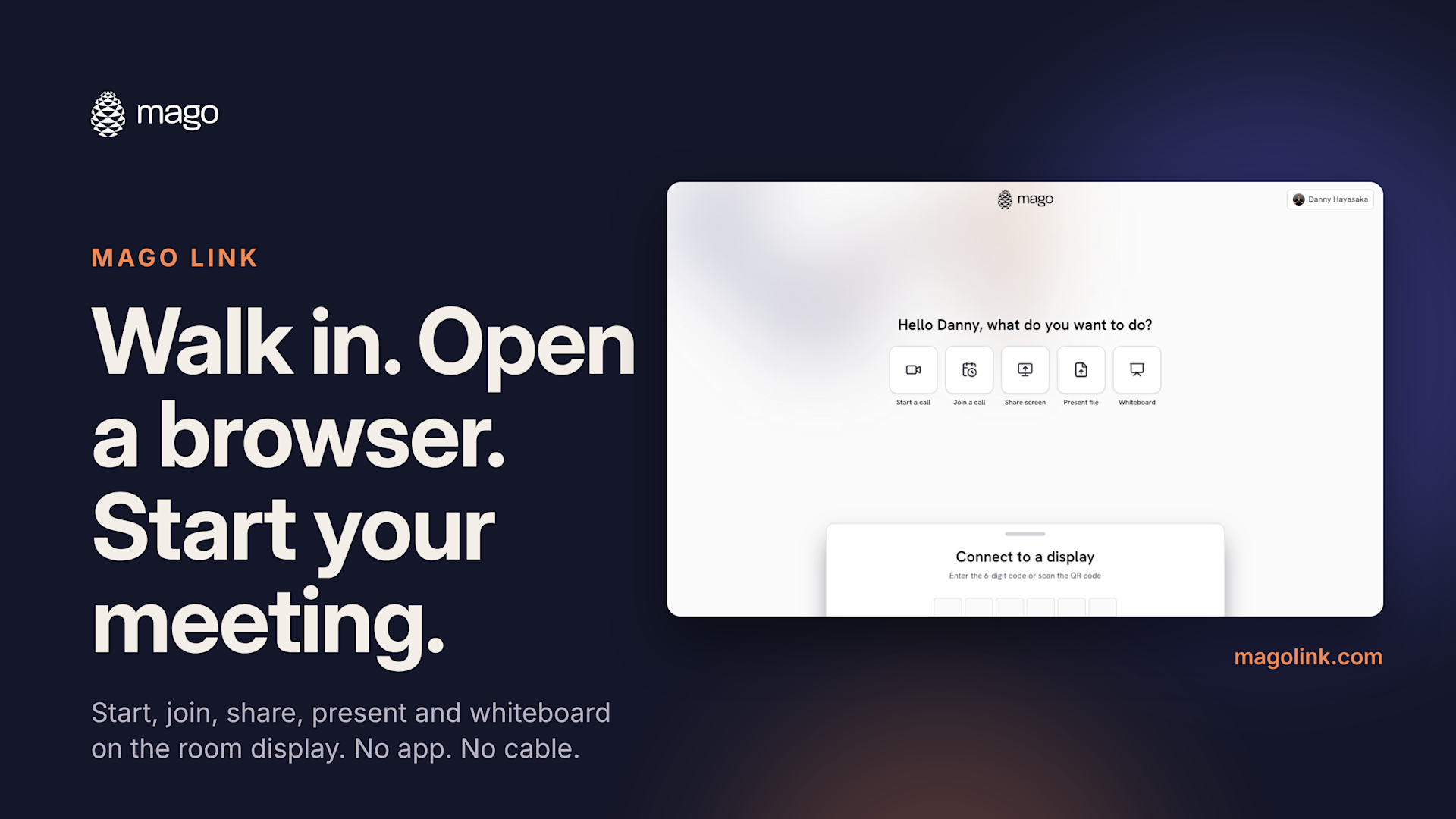
Mago Link: Walk In, Open a Browser, Start Your Meeting

You know the routine. Someone walks into the meeting room with a laptop, and the next five minutes go to the wrong cable, a missing dongle or an app nobody remembered to install. Meanwhile, everyone else in the room waits.
We built Mago Link to skip that part. Open a browser, enter a six-digit code, and your laptop or phone becomes the remote for the room display. From there you can start a call, join one, share your screen, present a file or open a whiteboard.
What is Mago Link?
Mago Link is the browser side of Mago for Display, our unified platform for meeting rooms. It lives at magolink.com and works in any modern browser, so there is nothing to download on the laptop. Phones and tablets share through the Mago app for iOS and Android.
It is included with every Mago for Display subscription, and it works whether you are on the corporate network, on guest Wi-Fi or a visitor on your own connection.
Connect in three steps
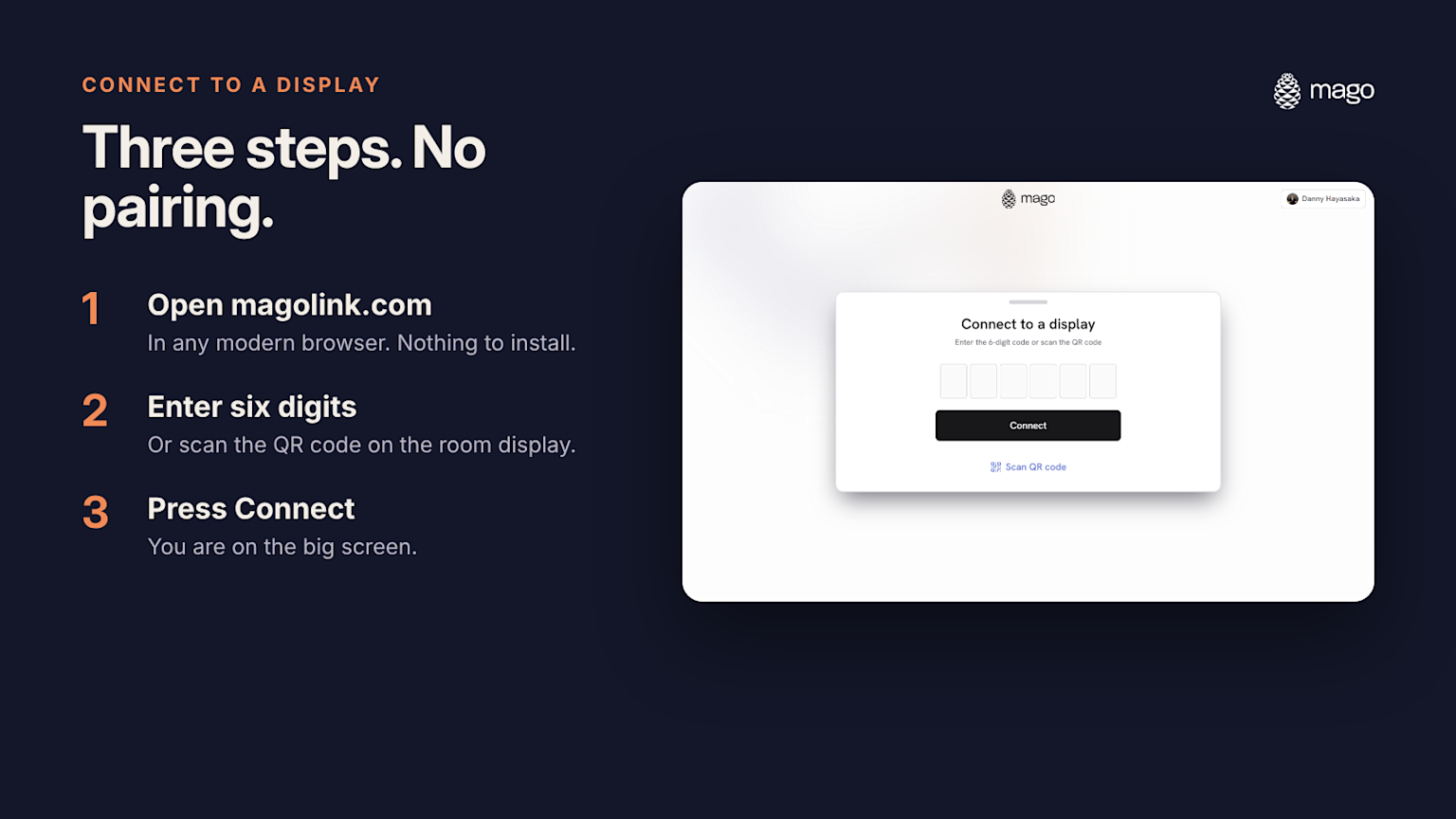
- Open magolink.com in the browser on your laptop.
- Enter the six-digit code shown on the room display, or scan its QR code with your phone camera.
- Press Connect. Everything you do in Mago Link now lands on that screen.
No Bluetooth pairing, no dongle and no hunting for the room on a network list. The code links your browser to that one display.
Five things you can do from a browser tab
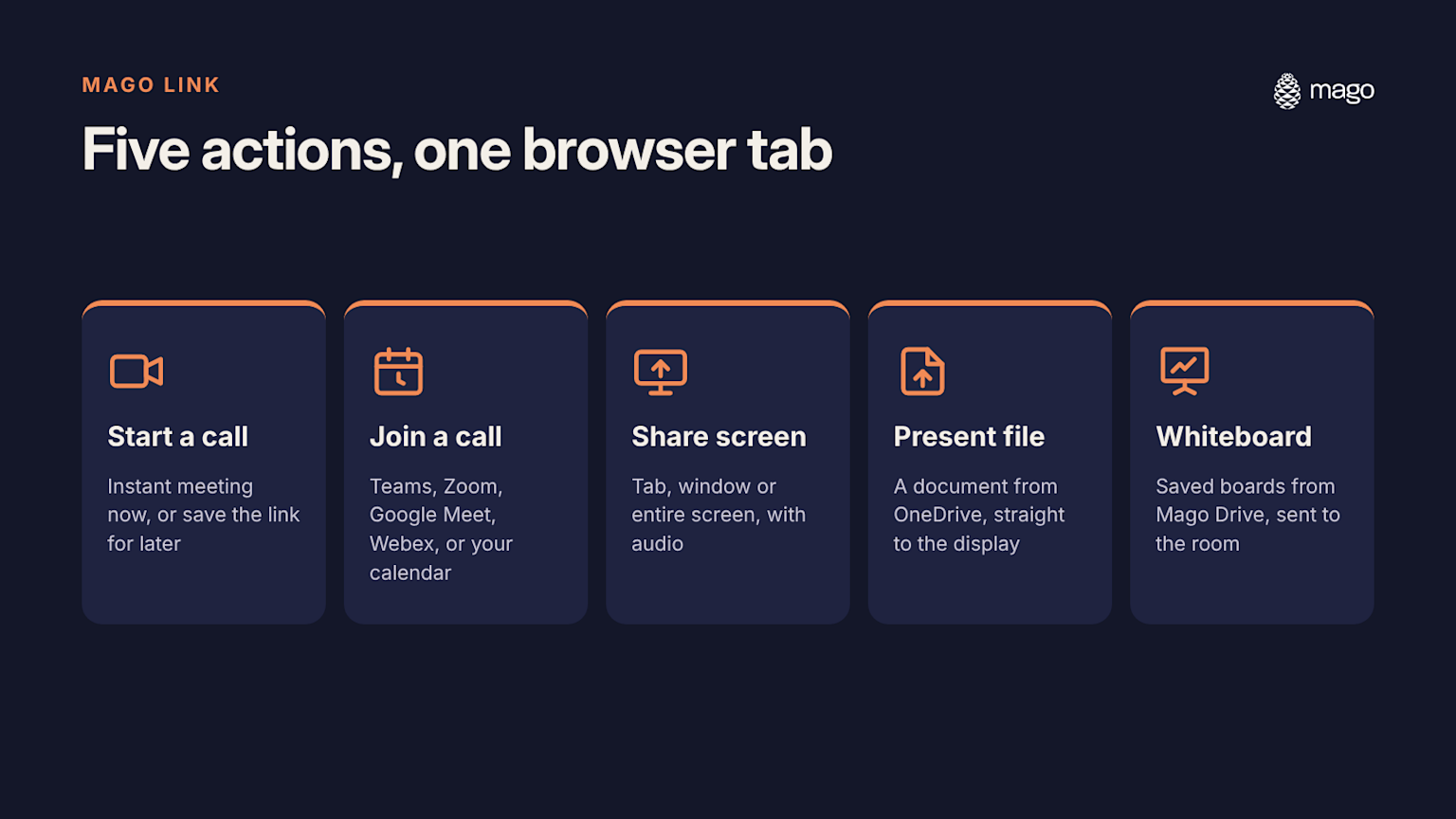
Start a call
Need to pull a remote colleague into an unplanned huddle? Choose Start now and an instant meeting opens on the room display. Choose Save for later to create the link and send it ahead of time.
Join a call
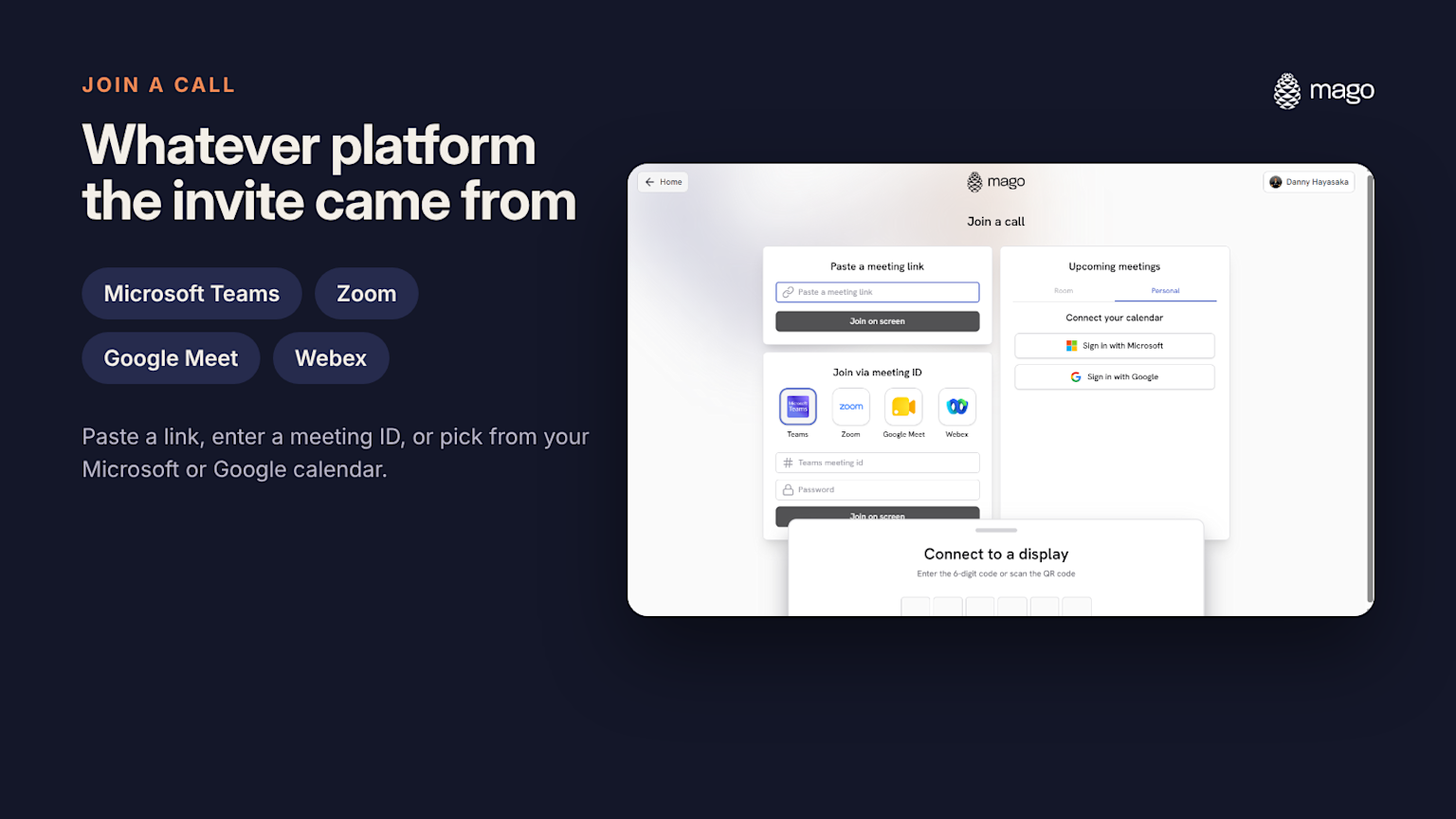
The invite can come from anywhere. Paste a meeting link and press Join on screen, or enter a meeting ID and password for Microsoft Teams, Zoom, Google Meet or Webex. You can also connect your Microsoft or Google calendar and join an upcoming meeting in one tap.
Share screen
Share a single browser tab, one window or your entire screen, with audio, wirelessly. During a meeting, up to four people can share at the same time, and the moderator chooses whether the room shows one, two, three or all four.
Present file
Put a document from OneDrive on the room display without plugging anything in.
Whiteboard
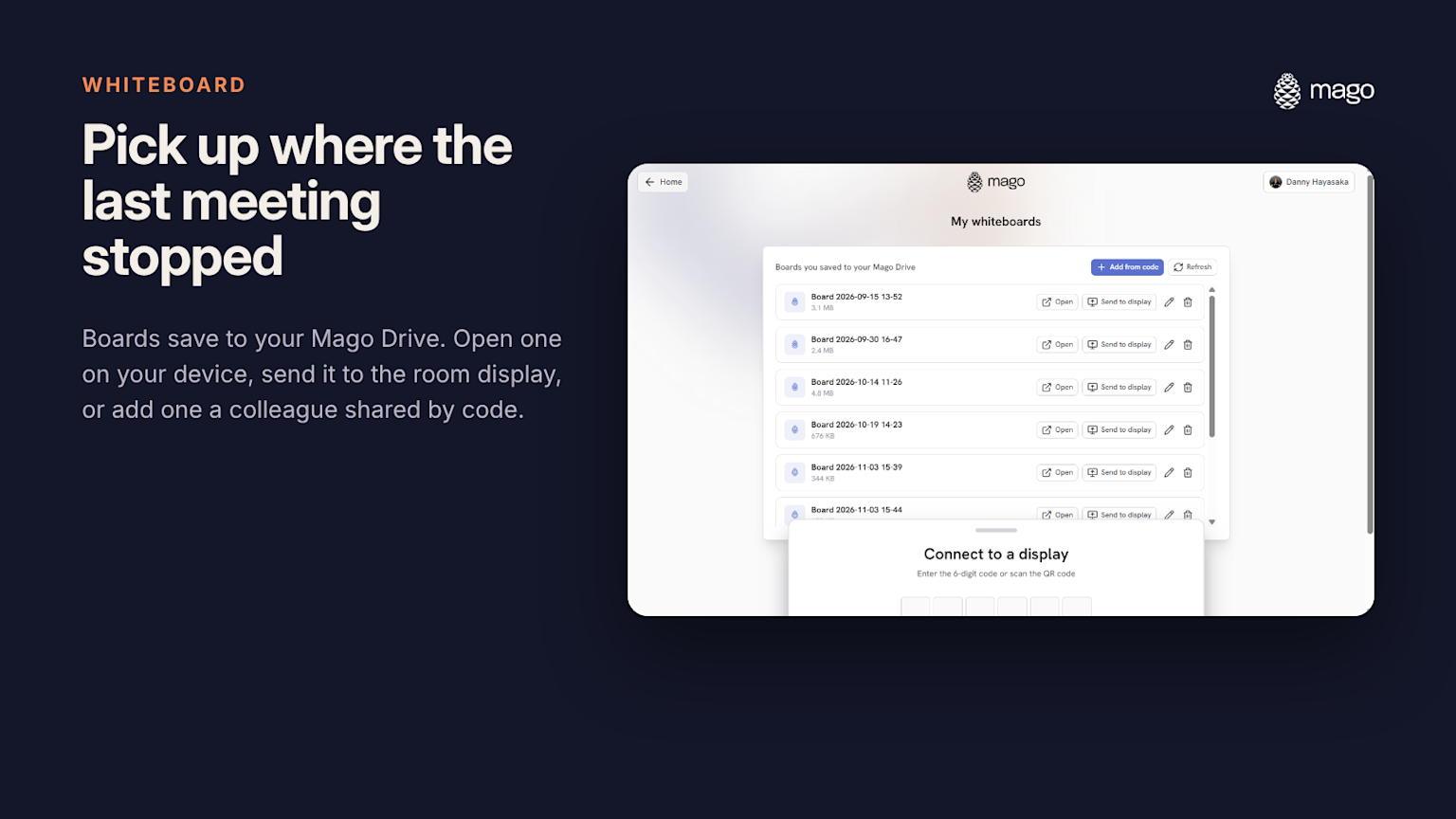
Boards you save live in your Mago Drive. Open one on your own device, send it to the room display, or add a board a colleague shared with you by code. The next meeting picks up exactly where the last one stopped. Mago Whiteboard is free on personal devices and included on the room display.
Built for locked-down networks
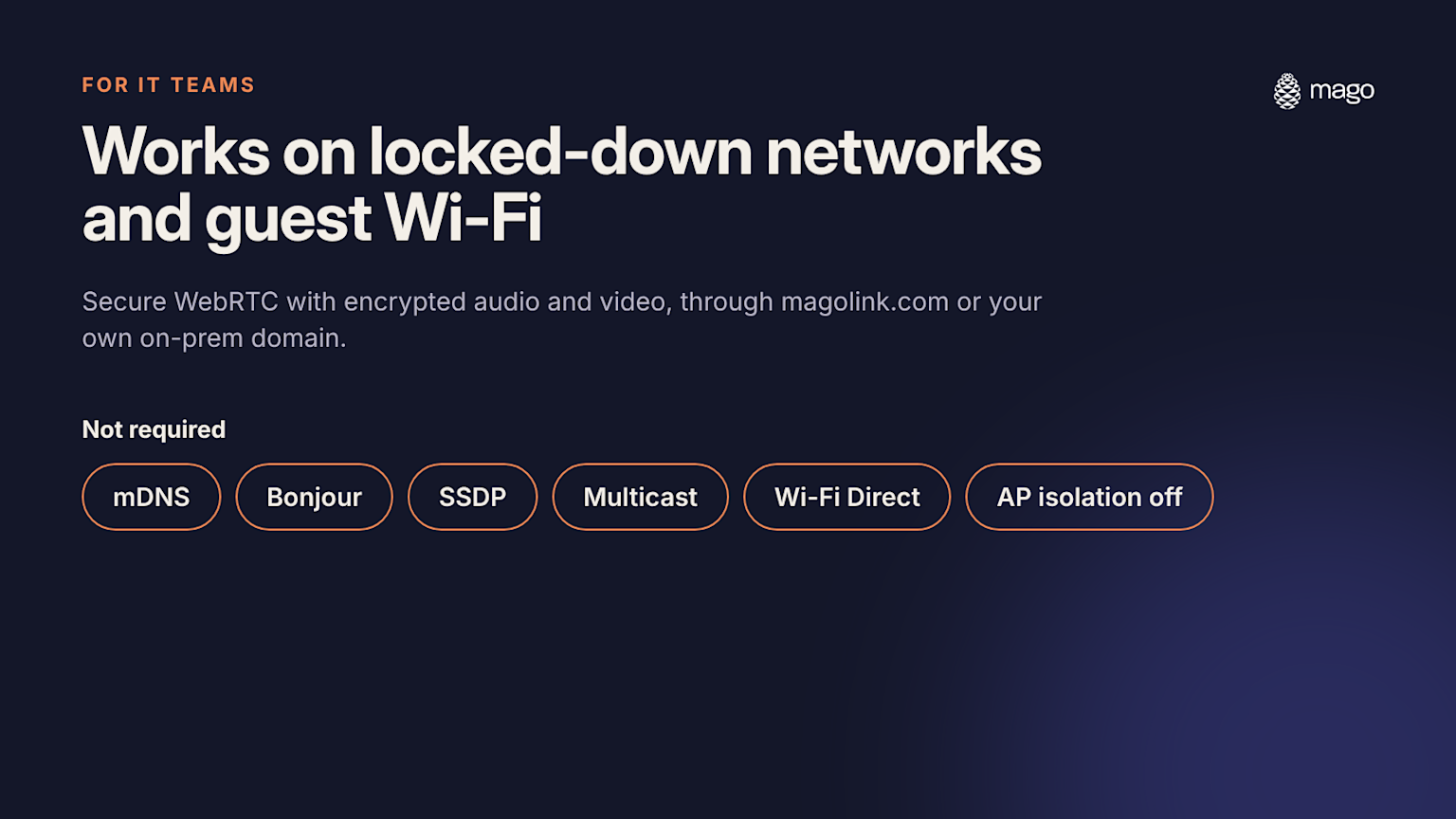
Mago Link uses the Mago Cast protocol to open a secure WebRTC session between the sender's device and the Mago room device. Audio and video travel encrypted (SRTP). It runs through magolink.com or through a domain you host on premises.
Most wireless presentation tools rely on network discovery, which IT teams usually turn off on guest and enterprise Wi-Fi. Mago Link needs none of it:
- No mDNS or Bonjour
- No SSDP or multicast
- No Wi-Fi Direct
- No need to disable AP isolation
IT only needs a small set of standard outbound and media ports open. The full list, with fallback behavior when UDP is blocked, is in the Mago Link requirements on the Mago Knowledge Base. For the rest of a Mago rollout, see our guide to network requirements for an optimal Mago deployment.
See it in your own room
Mago Link is the quickest way to show what Mago for Display does, because there is nothing to set up on the guest's side. Bring a laptop, open a browser, and the room is yours.
Want to see it on your own hardware? Book a 30-minute demo and we will walk through every Mago Link action live.